How to Transcribe WhatsApp Voice Messages: Every Method Compared (2026)
8 min read · June 12, 2026
The short answer
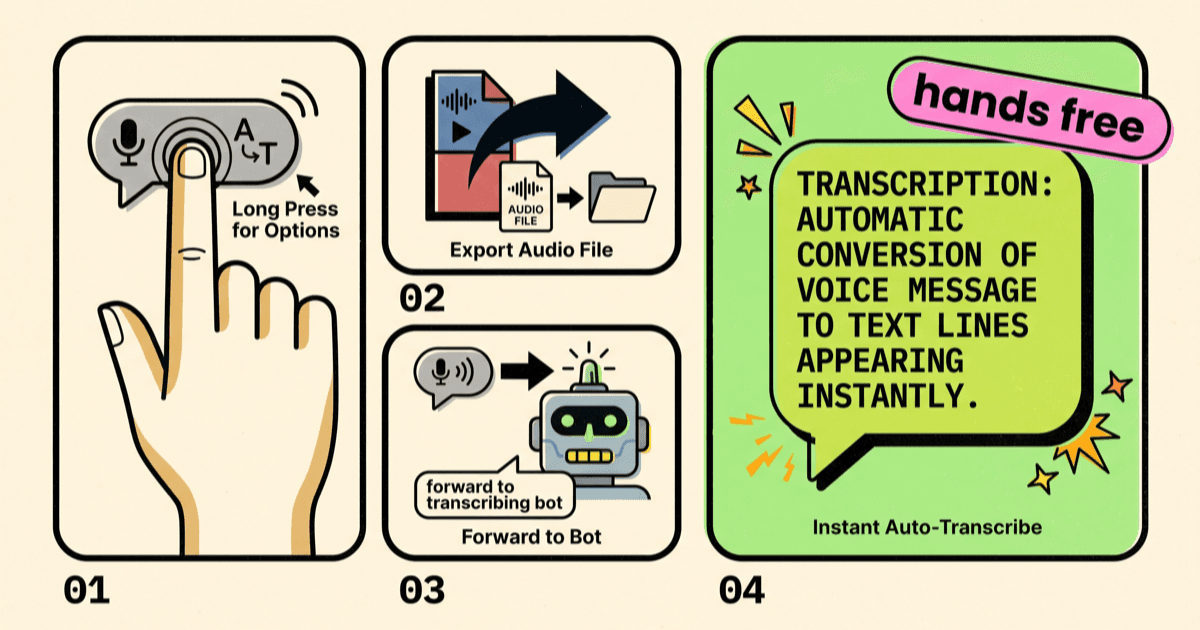
WhatsApp's built-in transcripts are fine for the occasional voice note: enable them once, then long-press a message and tap Transcribe. For a one-off message in an unsupported language, export the audio file or forward it to a transcription bot. If voice notes arrive daily, an automatic service like TxtPlease transcribes every single one and replies with the text in the same chat.
That's the summary. The details matter, though, because each method fails in a different place: language support, platform support, privacy, or plain effort. Here are all four methods, what they cost, and where they break.
Method 1: WhatsApp's built-in voice message transcripts
WhatsApp has had native transcription since November 2024. It runs entirely on your device, it's free, and it's off by default. You enable it once in settings, then transcribe individual messages by long-pressing them. The sender is never notified. This is WhatsApp speech to text in its most basic form.
How to enable it on iPhone
To turn a WhatsApp voice message to text on iPhone:
- Open WhatsApp and tap Settings (bottom right).
- Tap Chats, then Voice Message Transcripts.
- Switch transcripts on and pick one transcript language.
- Go to any chat, long-press a voice message, and tap Transcribe.
You need iOS 16 or later. iOS 16 supports 12 transcript languages; iOS 17 and newer raises that to around 20. The transcript appears below the voice note on your device only.
How to enable it on Android
The path for WhatsApp voice message to text on Android is the same:
- Open WhatsApp and tap the three dots, then Settings.
- Tap Chats, then Voice Message Transcripts.
- Enable transcripts and choose your language.
- Long-press any voice message and tap Transcribe.
Here's the catch: Android supports only about five languages: English, Portuguese, Spanish, Russian, and Hindi. German, French, Italian, Dutch, Turkish, Arabic? Not on the list as of 2026. If your chats run in one of those, the native option is a dead end on Android.
The limitations you'll hit
The native feature is genuinely useful, but it has hard edges:
- It's manual. Every single message needs a long-press and a tap. There is no setting that transcribes automatically.
- One language at a time. You lock in a single transcript language. Mom writes in German, your team in English? You'd have to switch settings between messages.
- Android's language list is tiny. Five languages versus around 20 on iPhone.
- Not in WhatsApp Business. The business app doesn't have the feature at all.
- Not on Web or Desktop. Transcripts only exist on your phone, even though the voice note shows up everywhere.
- "Transcript unavailable" errors are common. Background noise, dialects, or a language mismatch and the on-device model just gives up. We wrote a full troubleshooting guide for that in why WhatsApp transcription stops working.
For a deeper look at how the native feature works under the hood, see our complete guide to WhatsApp voice message transcripts.
Method 2: Export the audio file and use a transcription tool
Every WhatsApp voice note is an audio file in the .opus format. You can share it out of WhatsApp, save it, and upload it to any web transcription tool. This is the manual route for turning WhatsApp audio to text, and it works for any language and any length, as long as you only need it occasionally.
Step by step: getting the .opus file out
- Long-press the voice message and tap the share or forward option.
- On iPhone, share it to the Files app. On Android, use the share sheet to save it or send it to yourself (email works fine).
- Upload the .opus file to a transcription tool. Talknotes has a free tool, but it caps at 1 minute and 5 MB per file. Generic tools like HappyScribe handle longer recordings.
- Copy the text back to wherever you need it.
Four steps per message. Fine for the monthly three-minute monologue from your landlord, exhausting for daily use.
Android users get one shortcut: Transcriber for WhatsApp (by developer mirko) hooks into the share sheet, so you share the voice note straight to the app and get text back. It's free with ads and Android-only.
Method 3: Forward-to-a-bot transcribers
Transcription bots are WhatsApp numbers you save as a contact. You forward a voice note to the bot, and it replies with the text. No app to install, works on iPhone and Android, and most cover far more languages than the native feature. The real ones, with real prices:
- Transcribe Bot: free for 50 seconds of audio total, then €5.90 per 60 minutes or €9.70 per month for roughly 83 minutes.
- TranscribeMe / TranscribeGo: free tier of 10 minutes per month, then $6.99 per month for 200 minutes.
- Speechnotes bot: free with no stated limits, but hobby-grade. Expect rough edges.
Two problems. First, friction: you forward every message by hand, and the transcript lands in the bot chat, not in the conversation where the voice note lives. You end up flipping between two chats to follow one discussion. Second, privacy: your friend's voice recording gets sent to a stranger's number and processed on servers you know nothing about. Before forwarding anything sensitive, check the bot's retention policy. If you can't find one, that's your answer.
Method 4: Automatic transcription of every incoming voice note
This is what TxtPlease does, and it's the only method on this list that requires zero effort per message. Every incoming WhatsApp voice note gets transcribed automatically, and the text appears as a reply in the same chat, right under the audio. No long-pressing, no forwarding, no exporting.
Honest note up front: TxtPlease is pre-launch. You can join the waitlist today, but you can't use it this minute. We'd rather tell you that here than have you find out on the signup page.
How it works with a regular number and no Business API
TxtPlease connects to your existing WhatsApp account the same way WhatsApp Web does: you scan a QR code once, using WhatsApp's official multi-device linking. That means:
- Your regular personal number works. No Business API, no new number, no migration.
- Senders install nothing. Your contacts keep sending voice notes exactly as before. They don't need an app, a bot contact, or any setup.
- 90+ languages with Whisper-class accuracy. German on Android? Swiss German from your aunt? Mixed English-Spanish chats? Covered, on any device.
- Audio is deleted within seconds. Each voice note is transcribed and then immediately deleted. Nothing is stored, and nothing is ever used to train AI models.
- Sent notes too. Your own outgoing voice messages get transcribed as well, so you have a text record of what you said.
- Transcripts are normal messages. They sync to every device, including Web and Desktop, and they show up in WhatsApp search. Six months later, you can still find that address your plumber mumbled into the mic.
Planned pricing: a Free tier with 30 minutes per month, Personal at €5.99/month for 300 minutes, and Pro at €11.99/month for 1,500 minutes plus AI summaries and per-chat rules (mute the group chat, transcribe the boss). Details on the pricing page, and the full technical walkthrough is on how it works.
Which method should you use?
Match the method to your actual life, not to the feature list:
| Your situation | Best method |
|---|---|
| A voice note now and then, one language, supported device | Native transcripts (Method 1) |
| One-off long recording, or a language your phone doesn't support | Export the .opus file (Method 2) |
| A few notes per week, don't mind forwarding each one | A bot like TranscribeGo (Method 3) |
| Voice notes every day, manual steps are a non-starter | Automatic: TxtPlease (Method 4) |
| Chats in mixed or uncommon languages | Method 2 for one-offs, Method 4 for daily use |
| Strict privacy requirements | Native (stays on device) or TxtPlease (deleted within seconds, never stored); avoid bots with unclear retention |
| You want the transcript inside the conversation, on every device | TxtPlease (Method 4) |
The honest version: most people should turn on the native feature today, because it's free and built in. The people who actually suffer from voice notes (daily senders, multilingual chats, Android users outside the five languages) are exactly the people the native feature fails. That's who TxtPlease is built for.
FAQ
Can WhatsApp transcribe voice messages automatically?
No. WhatsApp's built-in transcripts are manual: you long-press each voice message and tap Transcribe. For automatic transcription of every incoming voice note, you need a service like TxtPlease, which replies with the text directly in the chat.
How do I convert a WhatsApp voice note to text on iPhone?
Open Settings > Chats > Voice Message Transcripts in WhatsApp, enable transcripts and pick a language. Then long-press any voice message and tap Transcribe. Requires iOS 16 or later.
Does WhatsApp transcription work in every language?
No. iPhones support up to 20 transcript languages, Android only around five, German, for example, is missing on Android in 2026. Whisper-based services like TxtPlease cover 90+ languages on any device.
Can I transcribe a voice message without the sender knowing?
Yes. WhatsApp's native transcripts happen on your device and the sender is not notified. Automatic services also don't notify the sender unless you choose to reply with the transcript into the shared chat.